
TL;DR
- Kurvenheld is a motorcycle app built in Flutter for iOS and Android. Together with the agency blindwerk I redesigned all of it: 23 screens, 28 design cells in pen.dev. It’s live in the App Store and on Google Play.
- The first phase was manual and slow on purpose: research, scope, paper wireframes, type and colors, the first proposal screens. Under five days, and the right place to be slow.
- Then the math broke. Proposal speed times 28 cells, times review rounds, times translating every screen into Flutter: nowhere near my estimate.
- So I wrote five skills for the parts that repeat: redesign, update, sync, implement, verify. Claude Code and Codex share them, connected to the pen.dev MCP and the Marionette MCP. All screens redesigned in under five days, all screens implemented in under five days.
- Every skill plans first and waits for my OK. blindwerk reviewed the designs and the code, and we checked everything before release. The automation made the loop faster. It didn’t take the people out of it.
Where this started
Kurvenheld is an app for motorcyclists. It counts the curves you ride, tracks your tours, ranks you against other riders and lets groups run challenges against each other. It’s built in Flutter for iOS and Android by blindwerk – Digitale Architekten, a German digital agency I work with as a freelance Flutter developer.
I knew the app well. In 2025 I had already rebuilt it with blindwerk, under the hood: new foundation, same UI. The screens people saw stayed exactly the way they were. This year came the other half, everything the user actually looks at.
That’s 23 screens. Five tabs (Discover, Ranking, Ride, Groups, Settings), seven detail screens (tour details, profiles, trophies, groups, challenges), four for onboarding and sign-in, three full-screen viewers and four system screens. Plus 11 bottom sheets and more dialogs than I care to count. In pen.dev it came to 28 cells, because empty states, wizard steps and some sheets each get a cell of their own.
Mostly it was a view-layer rewrite: new widgets on top of the same state management, data layer, routing, map and GPS tracking. Mostly. Some screens changed so radically that the code behind them had to move too. Pretending otherwise would have given us a very pretty mess.
This is what we started from:
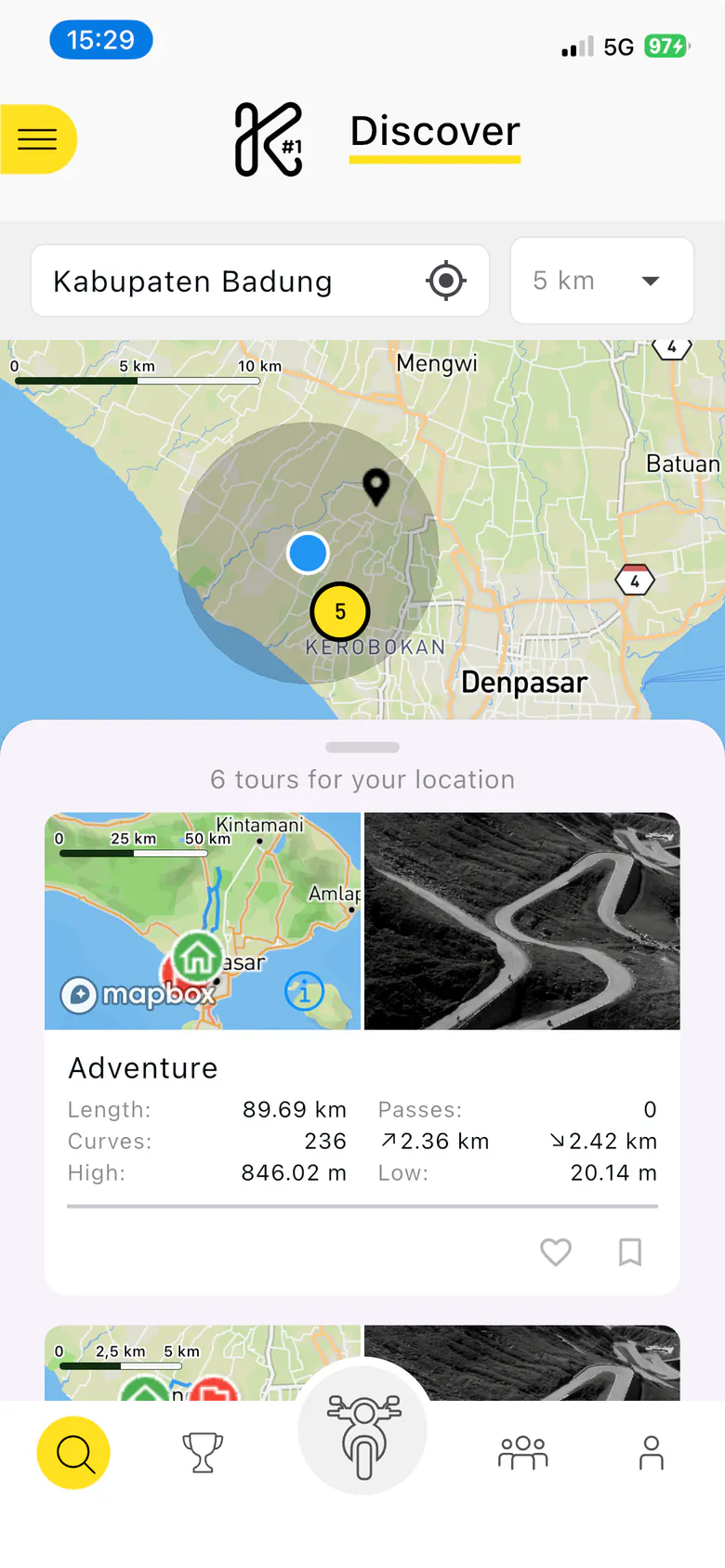
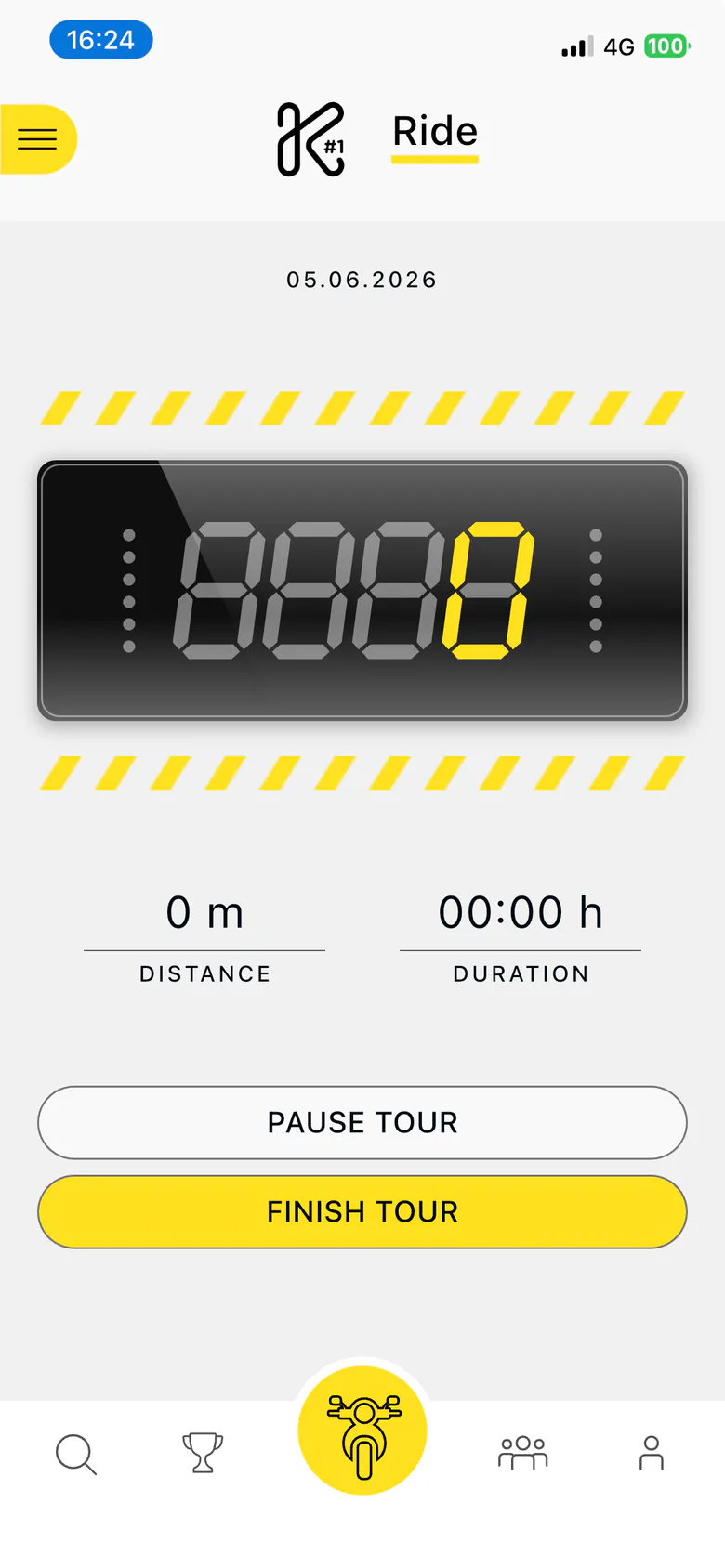
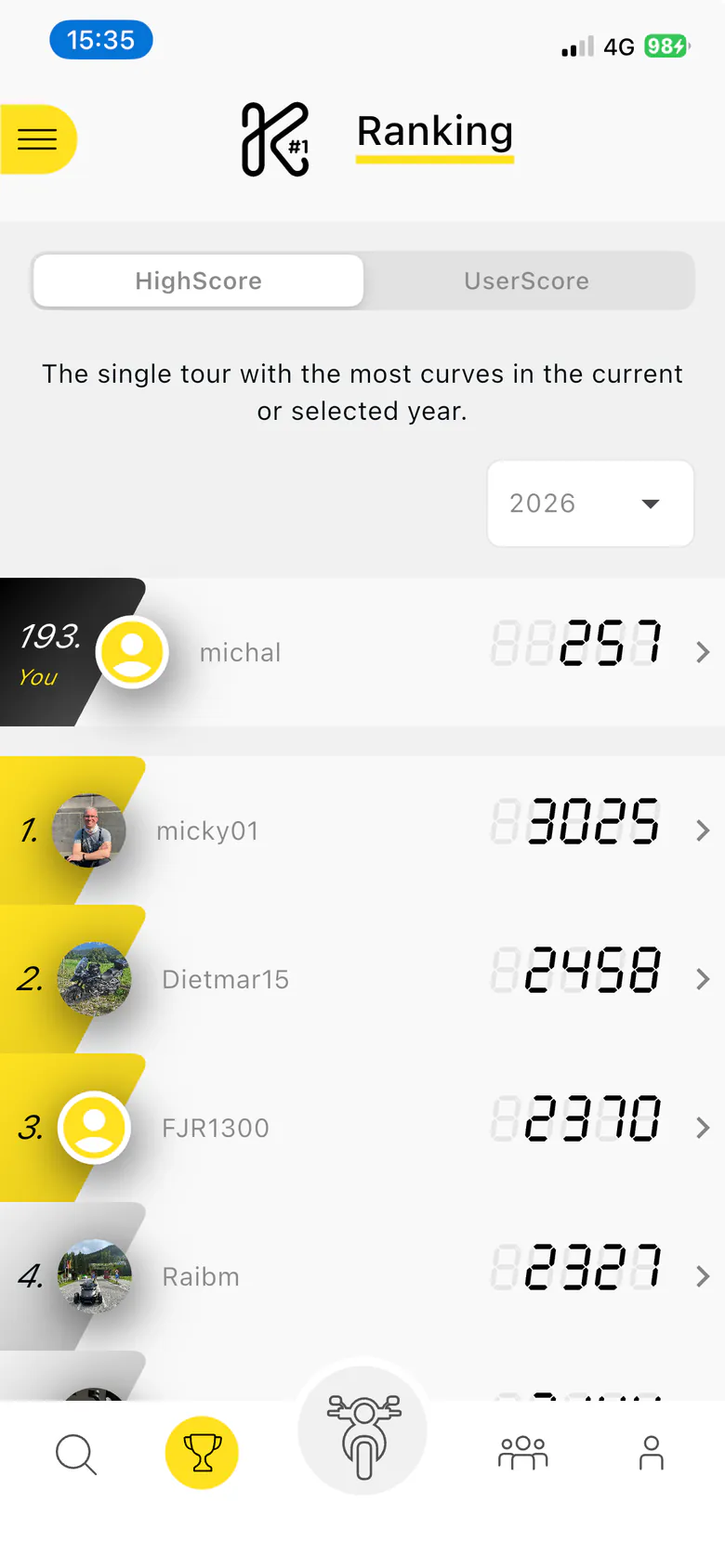
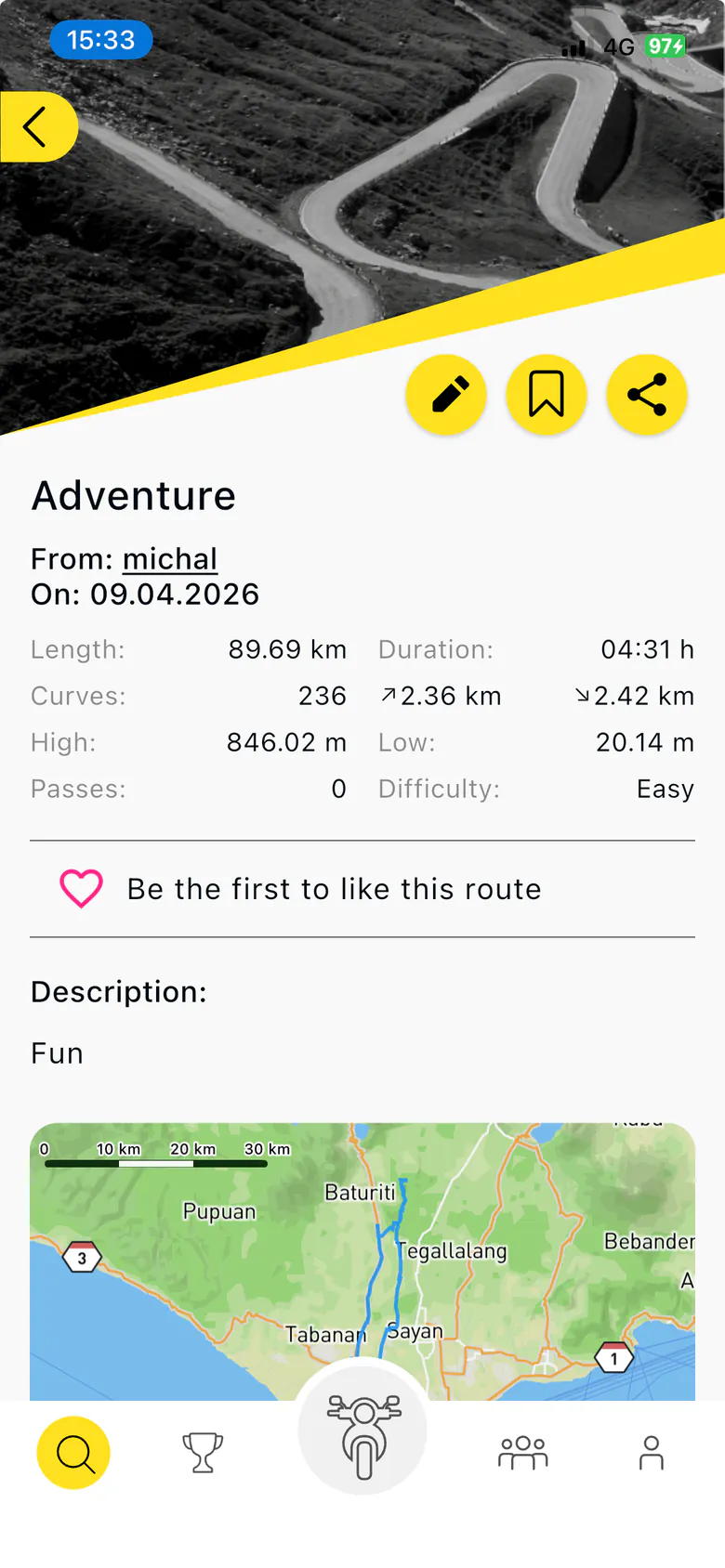
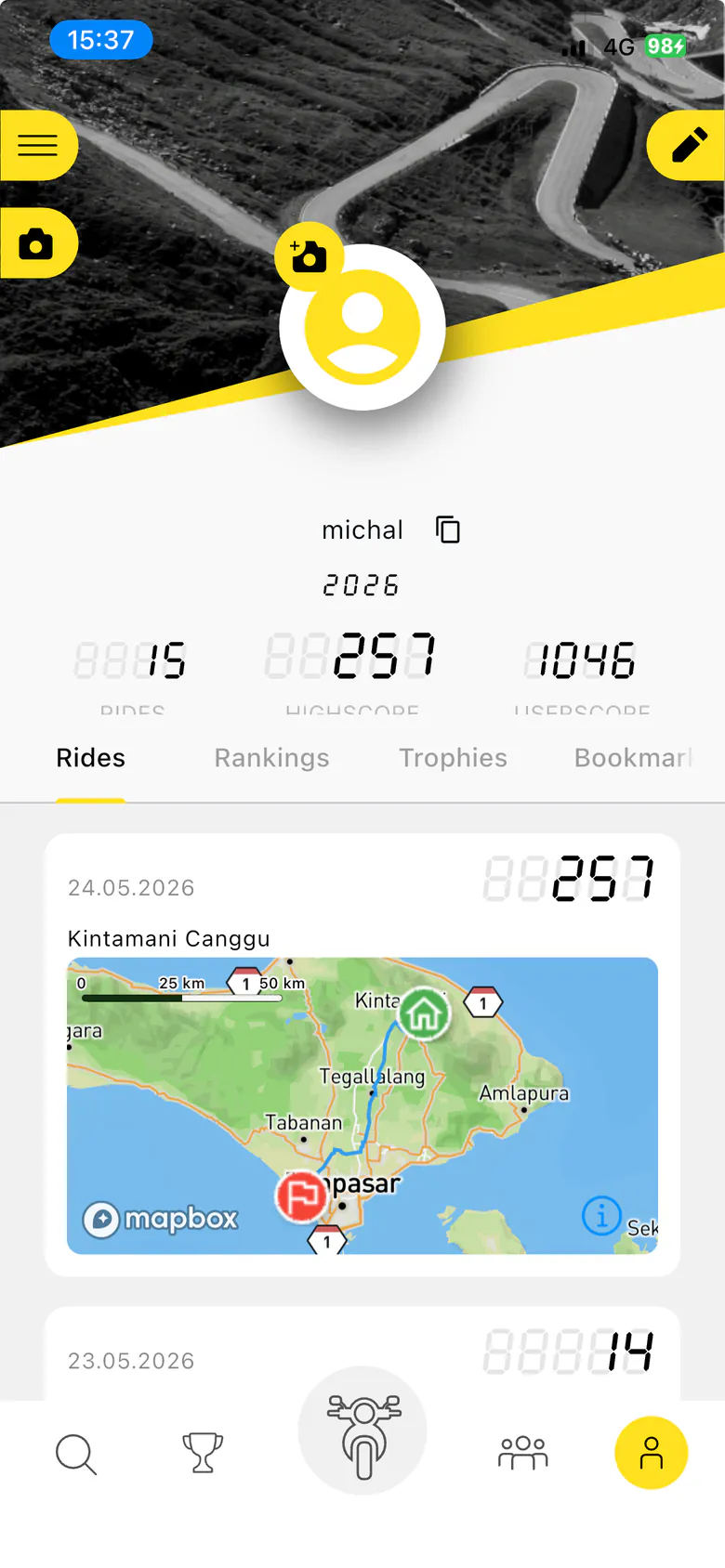
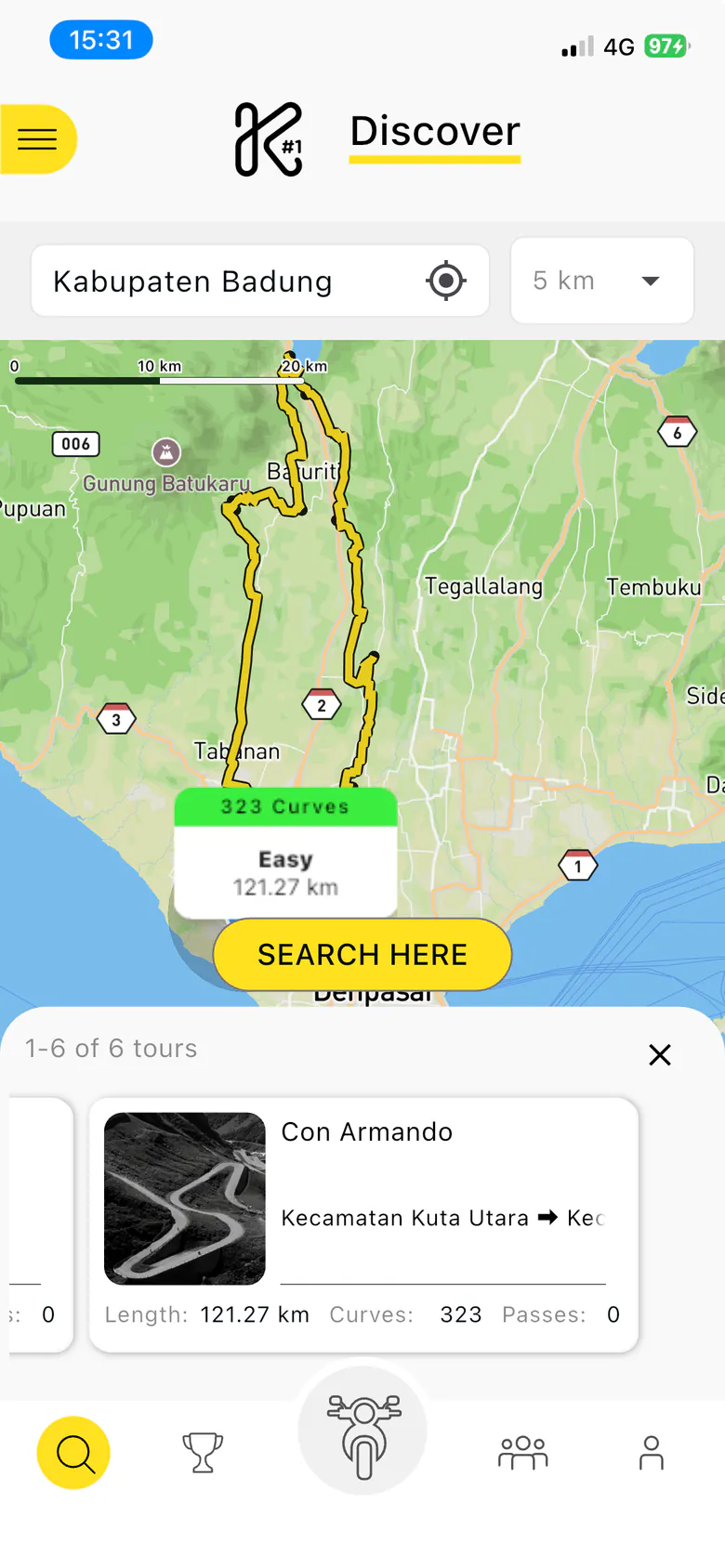
What is pen.dev?
pen.dev (formerly Pencil) is a design canvas that an AI agent can operate. The design is a .pen file, plain JSON, sitting in the repo next to the app code. A local MCP server exposes the canvas to Claude Code, Codex and friends: they read the design, create screens and components, bind values to tokens and export screenshots of what they drew.
You can still grab the mouse and move things yourself. You and the agent are editing the same file.
For a redesign that’s the whole point. The design system, all 28 cells and the Flutter code live in one repo, and the agent that just read a screen in the design file can open the Dart file that implements it.
Phase 1: slow on purpose
No skills, no automation. I spent the first days looking at other apps, sketching on paper, going back and forth with blindwerk on scope, and settling typography and colors. Then I built the first proposal screens in pen.dev: a handful of screens that showed where the app could go. All of it in under five days.
The prompts came out of a note I copy-pasted from. Every one carried the same three rules: every new component goes into the component library, variables instead of raw color values, reuse what exists before drawing anything new. That was enough discipline while there were few screens, and Claude Code with the pen.dev MCP gave me screens I could show the agency without touching up.
I’d do this phase slowly again. The decisions made here, the direction, the type scale, the palette, the scope, are inherited by every screen that follows. You want to look around, sketch, argue about it, revise. Nothing here repeats, so nothing here is worth automating.
The moment the estimate broke
The proposals got approved. I was happy for about an hour. Then I did the math for the rest.
Proposal speed, times 28 cells. A review round with blindwerk after every batch, an adjustment round after every review. Then every approved screen translated into Flutter, built from a component library I was still building, without dropping anything the old views did quietly: guest gating tucked into tap handlers, pagination, analytics events, what happens when you swipe a sheet away, what a form hands back to the screen that opened it.
The pace that was fine for a handful of proposal screens wasn’t anywhere near the estimate for the whole app. And here’s the thing: the slow part was already done. The decisions existed. What was left was repetition with a lot of rules attached, which is exactly what automation is good at.
Don’t automate taste. Automate what comes after it.
That’s the rule I’d take into any redesign now. Taste, meaning the direction, the type, the colors, what the app should feel like, is human work, and you do it slowly. Executing against decided taste is process work. Process work with rules can be a skill.
So instead of grinding through screens one by one, I wrote skills for the processes that would repeat most: redesigning a screen from the old one, changing a design after a review, implementing a finished design in Flutter, verifying the implementation against the design, and bringing the design file back in line when the implementation deliberately went its own way.
What goes into a skill that never fit in a pasted prompt: the rules I kept repeating (tokens only, library first, reuse before building), the order of operations (read the live file before touching anything, plan, get my OK, then build), the things that went wrong once and must not go wrong again, and a way to test the skill itself.
I used Anthropic’s Skill Creator to write and iterate them. It drafts the SKILL.md, keeps it lean by pushing detail into reference files, and runs evals: prompts plus assertions about what the skill should produce. For the design skills the evals are plan-only dry runs. The agent plans and stops, so a test run never edits the design file, and every rewrite of a skill gets checked against the same prompts as the version before it.
One redesign loop, five skills
Each skill owns one direction of truth. That turned out to be the most important design decision in the whole set: a skill that knows what its source of truth is can refuse to improvise.
| Skill | What it treats as truth | What it changes |
|---|---|---|
kurvenheld-screen-redesign | Screenshot of the old screen, a brief, optional design references | A new screen in pen.dev, built on the design system |
kurvenheld-screen-update | A text brief, resolved against the live design file | An existing pen.dev screen, with the component library kept in sync |
kurvenheld-screen-sync | Screenshot of the implemented app | The pen.dev file, brought back in line with what shipped |
kurvenheld-screen-implement | The finished pen.dev screen | The Flutter view layer, composed from the component library |
kurvenheld-screen-verify | Both: the running app and the pen.dev screen | Nothing until I approve; then view-layer fixes via hot reload |
A screen usually moved through them in this order: redesign, a review round with blindwerk, update for the feedback, implement, verify. Sync is there because the loop is never perfectly clean. A few sheets shipped without ever being designed, a few shipped differently than designed, and a design file that lies is worse than no design file. So the app-to-design direction got a skill of its own.
The skills belong to the client, so I’ll describe what each one does rather than show it.
kurvenheld-screen-redesign
Phase 1, turned into a repeatable process. I hand it a screenshot of the current screen, a short brief (what should change, what those three unlabeled numbers on the profile actually mean) and, when I have them, a reference image or two for the look. It reads the live design file first: the component library, the tokens, how the existing screens are built. Then it proposes a plan, which components it will reuse, which new component it thinks the system needs and why, how the screen stacks top to bottom, and waits.
Only after my OK does it draw. Everything it draws is bound to tokens, and new components land in the library, documented like their neighbours. Reference images are for direction only; the colors and fonts stay Kurvenheld’s.
kurvenheld-screen-update
The review-feedback skill. Input is a text brief: “the sheet should get a close notch like the one on Discover”, “make the back button icon-only”. It finds the exact element in the file and decides the level of the change: the component master, so it propagates everywhere; this one instance; or inline. Then it lists every screen the change will touch, including the library’s showcase, and waits for my go. After the edit it checks that the library still matches the screens.
The whole skill is about blast radius. A change that fixes one screen and quietly breaks three others is worse than no change.
kurvenheld-screen-sync
The reverse direction. Input is a screenshot of the implemented app. The skill makes the design file match what shipped, a sheet that never got designed, a screen that shipped differently, but builds it with the system’s own components and tokens.
When the app and the design system disagree, say a spacing that sits off the token scale or a hand-built element where a component exists, it doesn’t decide. It lists the deviation with options and asks me. The app might be right and the system should evolve, or the app might be wrong and the implementation needs a fix. A screenshot can’t tell you which.
kurvenheld-screen-implement
The Flutter skill. Input is a finished design cell and the screen it belongs to. It reads the design, the component map and the current code, including the dialogs and sheets the screen opens, where legacy UI likes to hide. Then it writes a plan: every design element mapped to a component, every behaviour of the old view that has to survive (loading and error states, guest gating, analytics events, dismissal rules), and the open questions a static design can’t answer.
I approve, the plan gets executed, and the result is walked against that must-survive list line by line. The skill stays in the view layer. Where the new UI needed deeper changes, it said so instead of improvising, and that became its own task.
kurvenheld-screen-verify
The one that drives the app. Input is a screen name. It exports the design cell from pen.dev, connects to the running app through Marionette, taps its way to the screen, takes screenshots and compares element by element.
Out comes a numbered list of deviations, each with a severity. Then it asks which ones to fix. Approved fixes go in via hot reload, screenshot, compare again.
When it gets stuck, a login wall, missing test data, a native map it can’t see, it hands over to me instead of trying the same tap a fifth time. And it keeps a file of navigation recipes, so the next run doesn’t rediscover the tap path.
A surprising share of the work in each skill went into when not to trigger and when to hand off to a sibling. Five skills in one domain means five chances to pick the wrong one, which is exactly what the Skill Creator’s description optimization is for.
What every skill has in common
Five skills, one skeleton.
- Read the live state, never memory. Every run reads the design file, the token list and the code it’s about to touch before it proposes anything. Node ids, component names, the current structure: all read fresh, because a design file that several sessions edit in parallel changes under you.
- Plan, then stop. Each skill produces a plan and waits for my explicit OK before it edits a node or a line of code. For design changes the plan says at which level the edit lands: component master, this instance, or inline. For Flutter it maps every design element to a component and lists every behaviour of the old view that has to survive. Getting the level wrong either leaks one screen’s quirk into every screen or leaves the system inconsistent. The plan is where that gets caught, and catching it there is cheap.
- Design-system discipline as hard rules. Tokens only for fonts, spacing, radius and colors, in the design file and in Flutter. Reuse an existing component before building a new one, promote recurring UI into the library, keep the library’s showcase in sync with every change. No decoration nobody asked for.
- Reference files that learn. Two skills carry a living file next to their SKILL.md. The implement skill’s collects runtime pitfalls: app-shell facts, layout traps and theme bleed-throughs that passed the analyzer and code review and only showed up in the simulator. The verify skill’s collects navigation recipes: tap paths, preconditions, quirks. Every run reads them first and appends what it learned. A lesson I paid for once, on one screen, is free on the next 27.
- Evals. The skills were iterated with the Skill Creator’s evals, prompts plus assertions, run as plan-only dry runs. The agent plans and stops, so a test never mutates the design file, and a rewrite of a skill gets checked against the same prompts as the version before it.
- Expensive planning, cheap execution. For the Flutter skill the approved plan is written to disk as a self-contained file: component mapping, must-survive behaviours, the runtime pitfalls that apply to this screen, the open decisions already resolved. Executing it can happen in a fresh session on a cheaper model. Planning is the quality-critical half. Executing a fully specified, approved plan is where a model downgrade is safe.
The setup: one skills folder, two agents, many sessions
The skills live in .agents/skills/. .claude/skills/ holds symlinks into that folder, so Claude Code and Codex read the same files, and a change in .agents needs no second edit anywhere.
Design work ran in Claude Code connected to the pen.dev MCP. In my experience Claude is the strongest model for design work by a clear margin; what GPT produced on the same canvas was not close.
Implementation and verification ran in Claude Code and Codex, both connected to the pen.dev MCP (to read the cell being implemented and export it for comparison) and to the Marionette MCP (to drive the running app). I worked in several git worktrees at once: one session implementing a screen, another verifying the previous one, a third redesigning the next cell in pen.dev. The approval gates are what make this workable. A session waiting for my OK costs nothing while I’m reading another one’s plan, and because the plans are complete, approving one takes a minute, not a context switch.
The stack, if you want to reproduce it:
- pen.dev with its MCP server,
.penfile in the repo - Claude Code and Codex, sharing one skills folder
- Marionette MCP by LeanCode, plus the
marionette_flutterbinding in the app, debug builds only - Anthropic’s Skill Creator for writing and evaluating the skills
- git worktrees, one per parallel session
Watching agents drive the simulator
Marionette MCP by LeanCode is, in their words, “Playwright MCP, but for Flutter apps”. The app gets a small binding in debug builds, the MCP server connects to the app’s VM service, and from there an agent can list what’s tappable on screen, tap, type, scroll, take screenshots and read the logs.
The verify skill uses it to close the loop. It exports the design cell from pen.dev, drives the running app to the screen, screenshots it and compares element by element: is everything from the design there, is it the right component in the right variant, do spacing, color, typography and icons match. Out comes a numbered list of deviations, each with where it is, what the design says, what the app shows and a severity.
Then it asks me which ones to fix. Approved fixes go in through hot reload, then screenshot and compare again.
I’ll admit this part was fun. An agent tapping its way through the app on my simulator, tab to detail screen to sheet, while I was already working on the next screen in another window. The first time it happened I just sat there and watched.
What it catches is the class of problem that passes flutter analyze and looks fine in a diff: a gap one token step off, a component in the wrong variant, a legacy element the redesign should have removed, an overflow that only shows up in the console. What it’s told not to flag: real data where the design has placeholder content, device chrome, scroll position. And when it’s blocked, by a login wall, missing test data or a native map it can’t see through Flutter’s semantics tree, it hands over to me instead of trying the same tap again. Two cheap rounds of “put the app on the Groups screen and say ready” beat one agent thrashing against something it can’t observe.
Human in the loop, by design
The automation changed the speed of the loop. It didn’t change who’s responsible for what ships.
Four review layers stayed in place:
- The approval gate in every skill. Nothing gets drawn in pen.dev or written in Dart before I’ve read the plan. A plan is a page, not a diff, and reading it is where I catch the wrong component level, the dropped behaviour, the open question the skill correctly refused to guess at. Some of those questions a static design can’t answer at all, like what Apply and Reset do in a filter sheet when nothing changed. A person decides those, at plan time.
- Design reviews with blindwerk. After each batch of screens in pen.dev the agency reviewed. Their feedback went back in through the update skill, one plan per change, each stating which other screens it would touch.
- Code reviews by blindwerk’s developers. Every work item went through review like any other PR in the project. The agents’ code had to meet the coding standards, not the other way round.
- My own check before release. In the simulator and in the code. You still have to understand the code the agents produce, confirm it matches the standards, and look for what they missed.
The result
The redesigned Kurvenheld is live: App Store · Google Play.
Three phases, each under five working days: the proposals, the redesign of all 28 cells in pen.dev, the implementation of all screens in Flutter. Review rounds with blindwerk ran in between, so the calendar stretched further than fifteen days, but the effort didn’t. Without the skills, the second and third phases alone would have blown past my whole original estimate.
What changed in the process matters more to me than the hours. Every screen now has a design it was verified against. The design file still tells the truth about the app, because syncing it back is a skill and not a chore nobody does. And the next change to the app starts from a component library and a token set that design and code agree on.
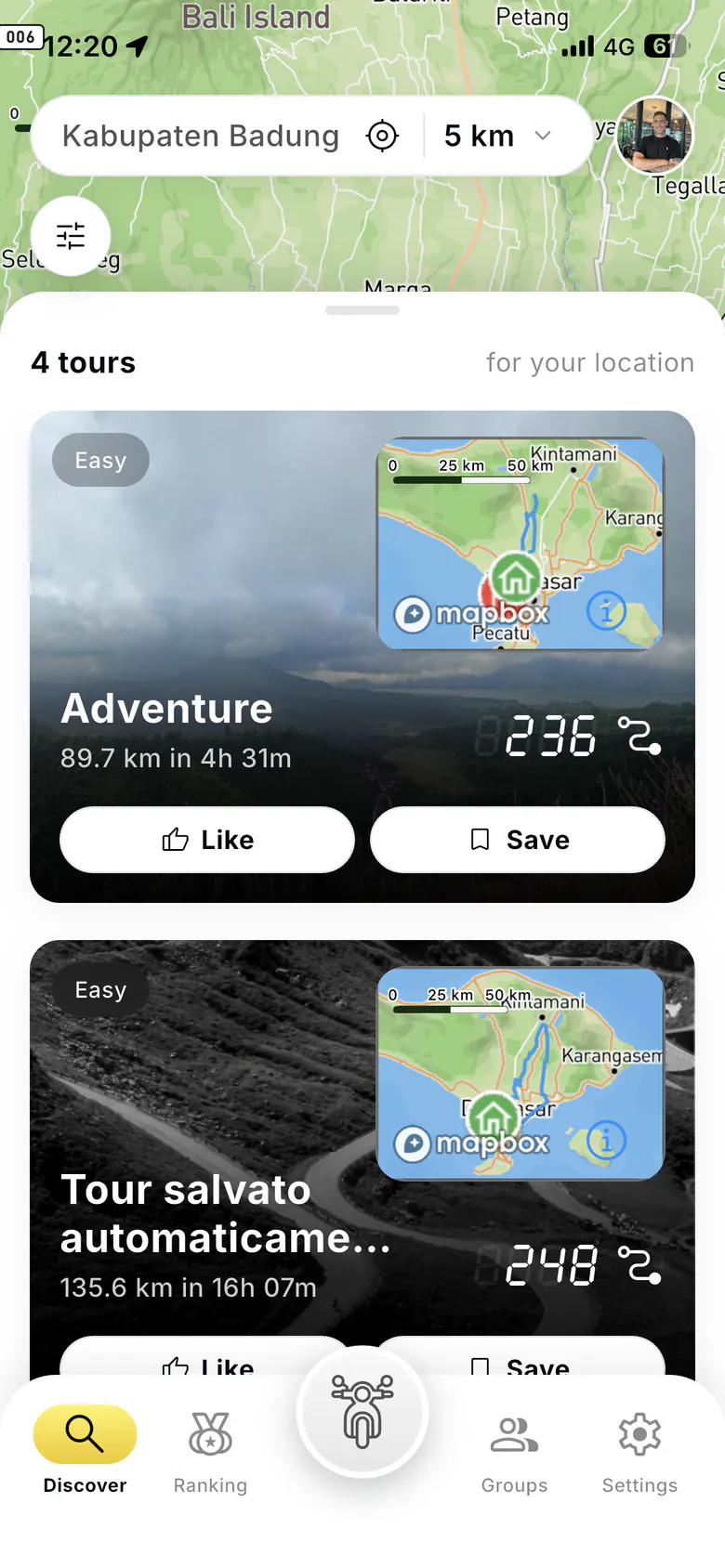
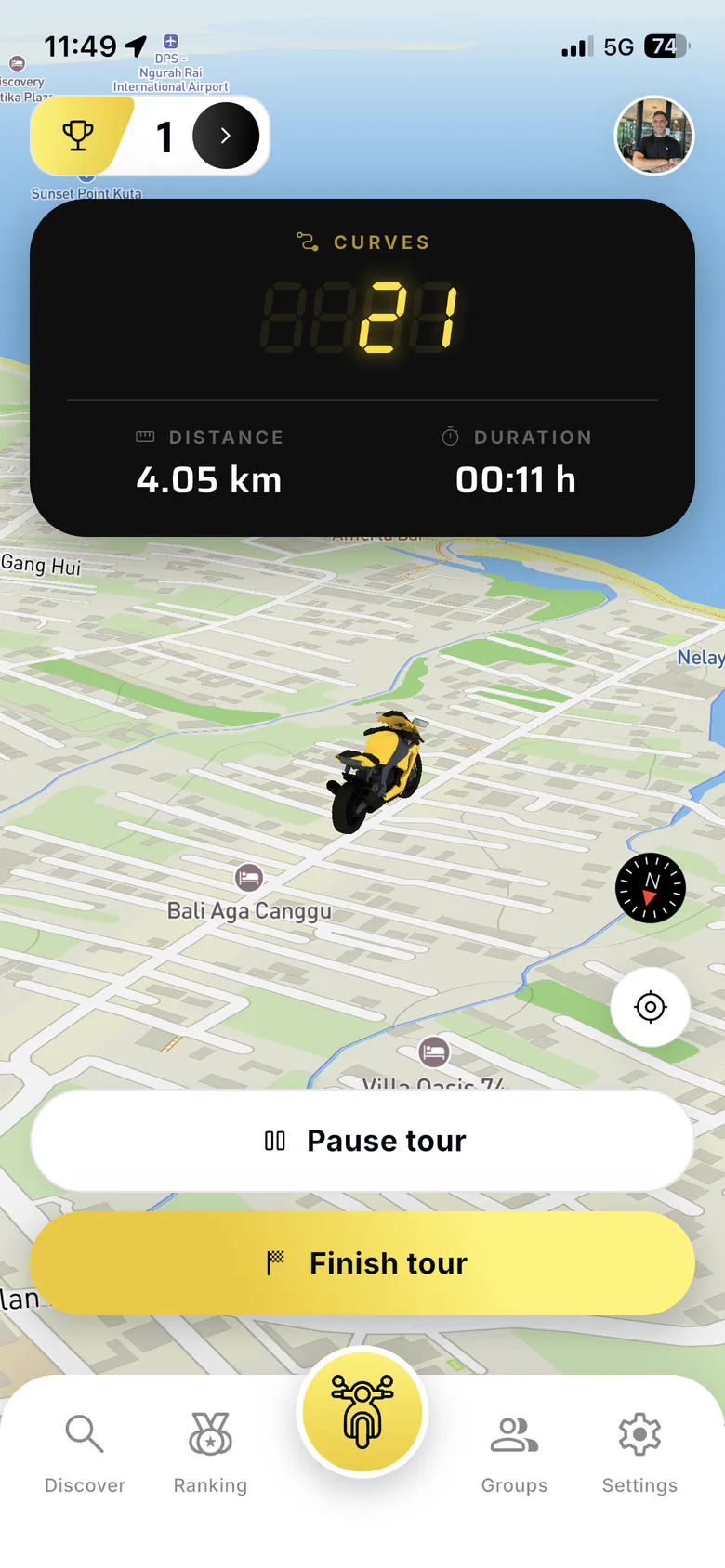
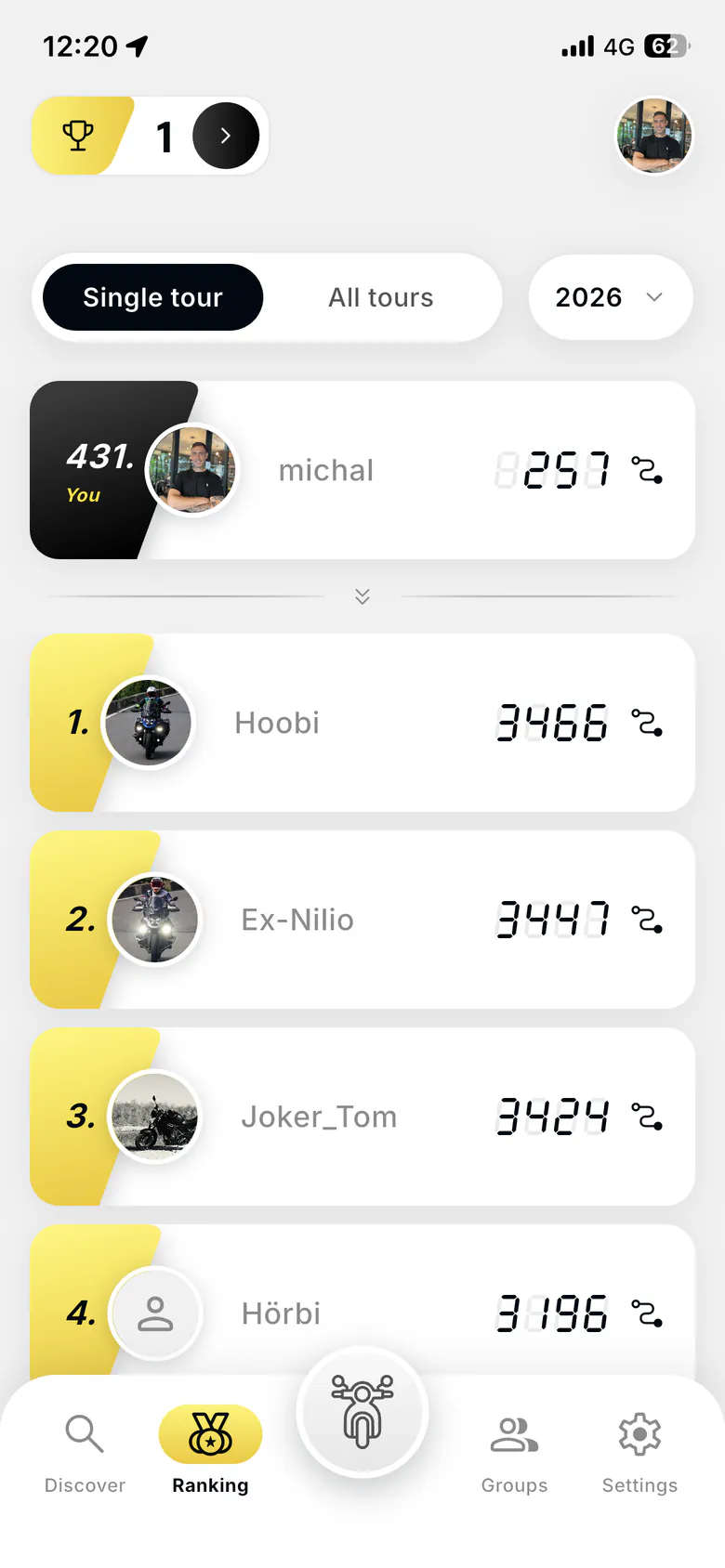
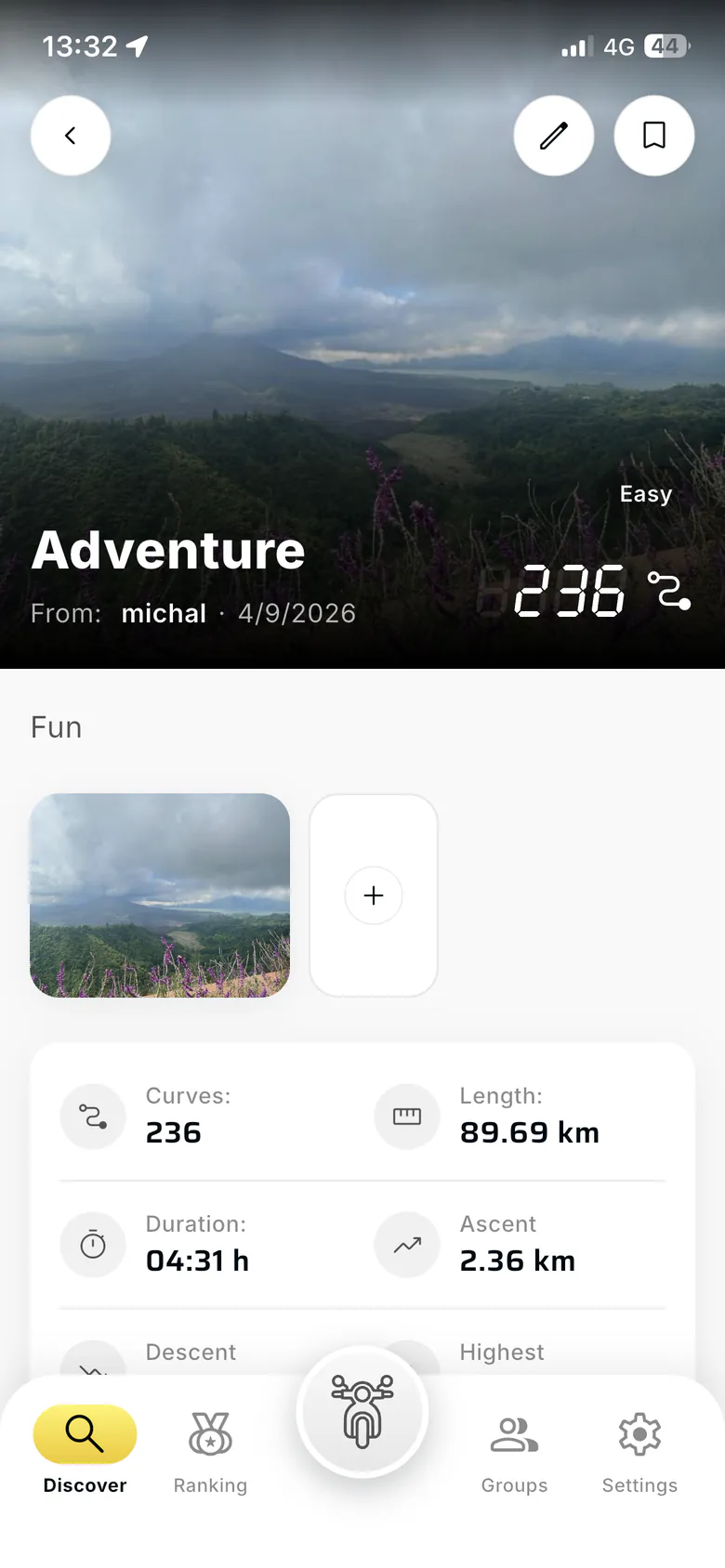
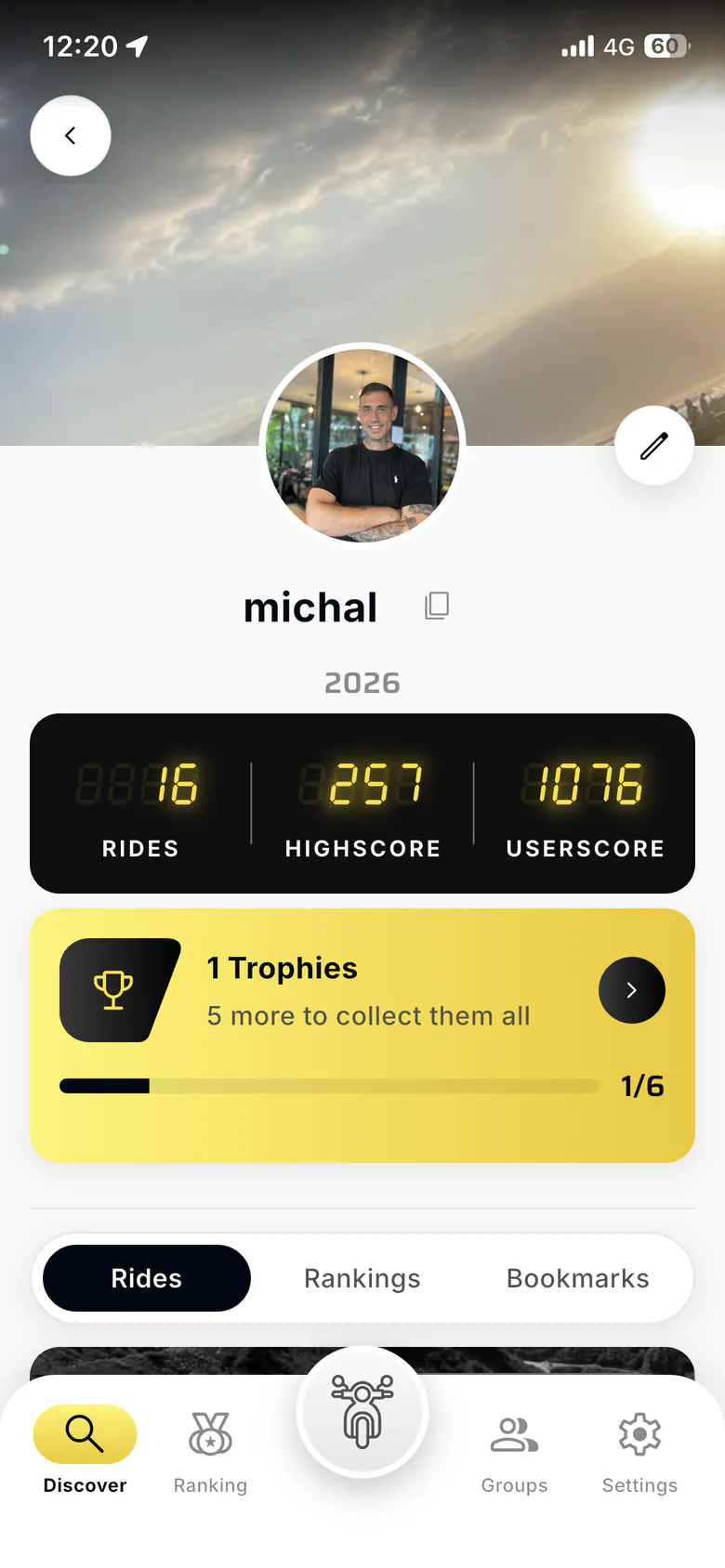
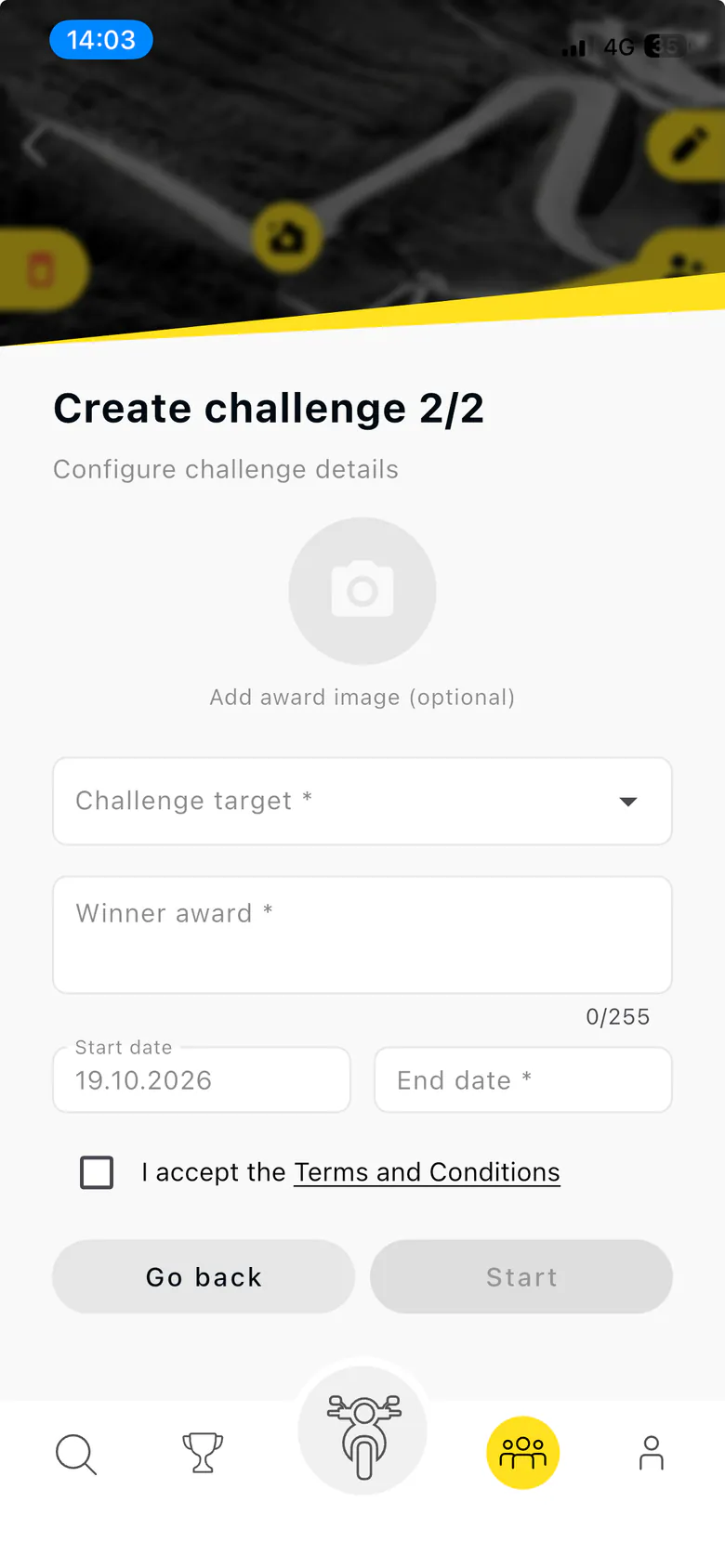
If you ride: Kurvenheld counts your curves, tracks your tours and lets your group challenge each other, kurvenheld.de. And if you need an app built or taken to its next version by a team that reviews this carefully, that’s blindwerk.
FAQ
Is pen.dev usable for a real production app redesign? Yes. The constraint is discipline, not the tool: tokens only, a component library as the single source of truth, a plan before every edit. Enforced through skills, the .pen file stayed a coherent system across 28 cells and a lot of parallel sessions. Without that discipline it turns into a folder of one-off mockups, which is also what happens in Figma.
Why write skills instead of a long prompt I paste every time? A pasted prompt carries rules. It doesn’t carry the order of operations, the lessons from the last twenty runs, or tests. Skills carry all three, live in the repo next to the code and the design, and are read by Claude Code and Codex alike. When a run hits a new pitfall, the skill’s reference file learns it. A prompt in a note doesn’t.
Why both Claude Code and Codex? Claude for design, where the difference in output quality is large in my experience. For implementation and verification both work from the same skills, so the choice became one of capacity and cost: more parallel worktrees, and cheaper models executing plans I’d already approved.
How do you verify that a Flutter screen matches its design? Drive the running app with the Marionette MCP, screenshot the screen, and compare it element by element against the exported design cell: presence, component and variant, spacing in token steps, color, typography, icons. Report deviations with a severity, fix only what a human approves, hot reload, compare again.
Does this replace the agency or the designer? No. The decisions that make a redesign good were made by people, slowly, in Phase 1, and blindwerk reviewed every batch of designs and every code change after it. What the skills replaced is the repetitive translation between a decided design and the code, the part nobody should do by hand 28 times.
How long did the whole redesign take? Each of the three phases took under five working days: proposals, redesign of all screens, implementation of all screens. Review rounds with blindwerk ran in between.
What’s next
The skills are specific to Kurvenheld on purpose. They know its design file, its component library and its codebase, and they’d be useless anywhere else. The pattern isn’t specific at all: one skill per direction of truth, a plan-first gate in each, reference files that collect the runtime lessons, and verification that drives the real app instead of trusting the diff. Next time I’d set that up before the first screen, not after the estimate breaks.
If you’re planning a redesign of a Flutter app, or want this kind of design-to-code loop with pen.dev and Claude Code set up for your team, get in touch. It’s the work I do.